


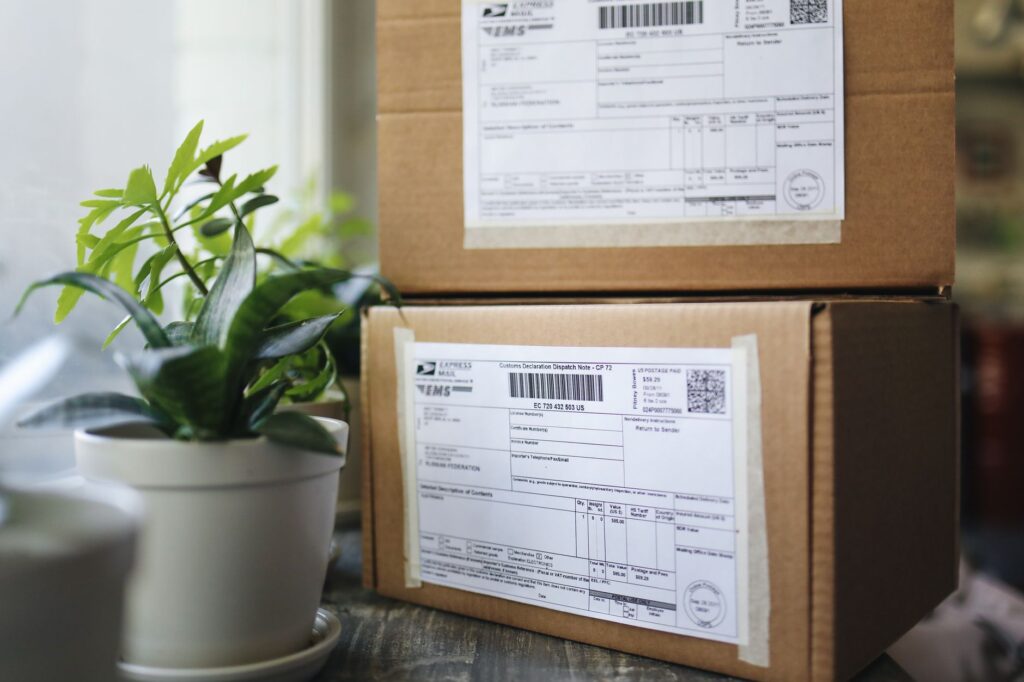
For the best CJ Order & Shipment Update, use **CJ Logistics' official tracking tool** or their **mobile app** for real-time updates. Enter your tracking number to monitor delivery status, delays, or estimated arrival times. For bulk updates, integrate their API into your system. Always check for the latest tracking features on their website.
If you run a WooCommerce store that already syncs product data with CJ Dropshipping but still manually copies orders and tracking numbers, you’re wasting time on repetitive tasks that a CJ order & shipment update plugin can handle automatically. The CJ Order & Shipment Update tool eliminates the need to paste order details into CJ’s dashboard or manually enter tracking numbers back into WooCommerce. Instead, it pushes new orders to CJ Dropshipping with mapped line items, variant IDs, and shipping addresses, then automatically writes the tracking number back into the WooCommerce order and customer email once CJ dispatches. At $0.00, it costs roughly half as much as comparable standalone order-automation tools, which typically charge $79 per year.
This guide explains how the plugin works, how to set it up in under 10 minutes, and why it saves hours of manual work compared to copying and pasting order details. Whether you’re dropshipping from CJ or just need reliable order and tracking sync, this tool keeps your store’s fulfillment process running smoothly without extra cost.
{{TOC_PLACEholder}}
How WooCommerce and CJ Dropshipping Order Sync Works
The CJ Order & Shipment Update plugin acts as a bridge between your WooCommerce store and CJ Dropshipping. When a customer places an order in your store, the plugin automatically sends the order details—including product variants, quantities, and shipping address—to CJ Dropshipping’s system. CJ then processes the order and prepares it for fulfillment. Once the package is dispatched, CJ updates the tracking status, and the plugin writes that tracking number back into the corresponding WooCommerce order. The customer also receives an automated email with the tracking link, all without any manual intervention on your part.
This two-way sync ensures that your store’s order records stay accurate and that customers receive real-time updates. Unlike generic dropshipping plugins that handle both product sync and order automation, this tool focuses solely on order and shipment updates, making it ideal for stores that already sync product data but need reliable order fulfillment automation.
Key Data Points Synced Between WooCommerce and CJ
- Order Items: Product names, SKUs, quantities, and variant IDs are mapped directly from WooCommerce to CJ’s system.
- Shipping Address: The customer’s full address, including name, street, city, state, postal code, and country, is automatically sent to CJ.
- Order Notes: Any special instructions or notes added to the WooCommerce order are included in the CJ order.
- Tracking Number: Once CJ dispatches the order, the tracking number is written back into the WooCommerce order and included in the customer’s notification email.
Step-by-Step Setup for Automatic Order Push
Setting up the CJ Order & Shipment Update plugin takes about 10 minutes and requires no coding knowledge. Start by installing the plugin from your WooCommerce dashboard under Plugins > Add New. Search for “CJ Order & Shipment Update,” install it, and activate the plugin. Once activated, you’ll see a new menu item labeled “CJ Dropshipping” in your WordPress admin sidebar.
Click on “CJ Dropshipping” to access the plugin’s settings. You’ll need to enter your CJ Dropshipping API key, which you can generate from your CJ account under the API settings section. Paste the key into the plugin’s settings page and save. Next, configure the order status triggers. By default, the plugin will push orders to CJ when they are marked as “Processing” in WooCommerce, but you can customize this to match your workflow.
Configuring Order Status Triggers
To ensure orders are sent to CJ at the right time, go to WooCommerce > Settings > CJ Dropshipping. Under the “Order Sync” tab, you’ll see a list of WooCommerce order statuses. Check the statuses that should trigger an order push to CJ (e.g., “Processing,” “On Hold,” or “Completed”). For most stores, “Processing” is the ideal status to start with, as it indicates the order has been paid for and is ready for fulfillment.
You can also set a delay if you need to batch orders before sending them to CJ. For example, if you prefer to send orders to CJ once per day, set a 24-hour delay. This prevents CJ from receiving orders in real-time if your fulfillment process runs on a schedule.
Testing the Order Push Before Going Live
Before enabling automatic order pushes, test the plugin with a sample order to ensure everything works correctly. Create a test product in WooCommerce, place a test order, and verify that the order appears in your CJ Dropshipping dashboard with the correct product details and shipping address. Once you confirm the order was pushed successfully, you can enable automatic order pushes for all future orders.
Mapping Variants and Shipping Address Correctly
Accurate variant mapping is critical to ensure CJ fulfills the correct product and size. The CJ Order & Shipment Update plugin automatically maps WooCommerce product variants to CJ’s system using the variant SKU. If your products have unique SKUs in both WooCommerce and CJ, the plugin will match them automatically. However, if your SKUs don’t align, you’ll need to manually map them in the plugin’s settings.
To check variant mappings, go to WooCommerce > Products and select a product with variants. Under the “Product Data” section, ensure each variant has a unique SKU that matches the SKU in CJ’s system. If they don’t match, edit the variant SKU in WooCommerce or CJ to ensure consistency. The plugin will then sync the correct variant when the order is pushed.
Handling Shipping Address Formatting
The plugin automatically formats the shipping address to match CJ’s requirements, but you should verify that your WooCommerce store’s address fields are set up correctly. Go to WooCommerce > Settings > General and ensure the “Default Customer Location” is set to “Sell to all countries” if you ship internationally. Also, check that your store’s checkout fields include all necessary address components, such as apartment numbers or company names, if applicable.
If your store uses a custom checkout field for additional address details, the plugin will include those in the order push to CJ. However, CJ may not accept certain special characters or formatting, so keep the address as simple and standardized as possible to avoid fulfillment delays.
How Tracking Numbers Sync Back to WooCommerce
Once CJ dispatches an order, the tracking number is automatically written back into the corresponding WooCommerce order. The plugin listens for tracking updates from CJ’s API and updates the order status to “Shipped” in WooCommerce. The customer then receives an automated email with the tracking number and a link to track their package.
To ensure tracking numbers sync correctly, go to WooCommerce > Settings > CJ Dropshipping > Tracking Sync. Here, you can configure how often the plugin checks for new tracking updates (e.g., every 5 minutes, hourly, or daily). For most stores, checking every 30 minutes is sufficient to keep tracking numbers updated without overloading CJ’s API.
Customizing Tracking Email Notifications
The plugin uses WooCommerce’s default order email templates for tracking notifications, but you can customize the message to include additional details. To edit the tracking email, go to WooCommerce > Settings > Emails and find the “Customer Shipped Order” template. You can modify the subject line, heading, and body text to include your store’s branding or specific instructions for customers.
For example, you might add a note like, “Your order has been shipped! Track your package using the link below. Estimated delivery time is 7-14 business days.” This keeps customers informed and reduces support inquiries about order status.
Why This Saves Time Compared to Manual Entry
Manually copying orders from WooCommerce to CJ Dropshipping and then entering tracking numbers back into WooCommerce can take 5-10 minutes per order, depending on your store’s volume. For a store processing 50 orders per day, that’s 4-8 hours of manual work each week—time that could be spent on marketing, customer service, or product research. The CJ Order & Shipment Update plugin automates this entire process, saving you hours of repetitive work.
Automation also reduces human error. Manually entering order details or tracking numbers can lead to typos, mismatched addresses, or incorrect variant selections, which can delay fulfillment or result in wrong shipments. The plugin ensures that order data is synced accurately every time, improving fulfillment speed and customer satisfaction.
Time-Saving Benefits of Automation
- No More Copy-Pasting: Orders are pushed to CJ automatically when they reach the “Processing” status, eliminating the need to manually enter order details.
- Real-Time Tracking Updates: Tracking numbers are synced back to WooCommerce as soon as CJ dispatches the order, keeping customers informed without delay.
- Reduced Support Tickets: Customers receive automated tracking emails, reducing the number of inquiries about order status.
- Scalability: As your store grows, the plugin handles increased order volume without requiring additional manual work.
Pros and Cons
Pros
- Free to Use: Unlike comparable tools that charge $79/year, this plugin is completely free, making it a cost-effective solution for WooCommerce stores.
- Seamless Integration: The plugin works directly with WooCommerce and CJ Dropshipping’s API, ensuring reliable order and tracking sync.
- No Coding Required: Setup takes less than 10 minutes, and no technical knowledge is needed to configure the plugin.
- Automated Customer Notifications: Customers receive tracking emails automatically, reducing support workload and improving satisfaction.
- Customizable Order Status Triggers: You can set which WooCommerce order statuses trigger an order push to CJ, allowing you to align the plugin with your workflow.
Cons
- Requires CJ Dropshipping API Access: You must have an active CJ Dropshipping account with API access enabled to use this plugin.
- Limited to CJ Dropshipping: This tool only works with CJ Dropshipping and cannot sync orders with other suppliers or marketplaces.
- No Bulk Order Sync: The plugin syncs orders in real-time or based on a delay, but it does not support bulk historical order syncs.
- Tracking Sync Depends on CJ’s API: If CJ’s API experiences downtime, tracking updates may be delayed until the service is restored.
- Variant Mapping Must Be Accurate: If your WooCommerce and CJ product SKUs don’t match, you’ll need to manually map variants in the plugin’s settings.
Frequently Asked Questions
Does the CJ Order & Shipment Update plugin work with any WooCommerce theme?
Yes, the plugin is fully compatible with all WooCommerce themes. It integrates with WooCommerce’s core functionality, so it will work regardless of your store’s design or layout.
Can I use this plugin if I don’t have CJ Dropshipping API access?
No, the plugin requires an active CJ Dropshipping account with API access enabled. You can generate your API key from your CJ account under the API settings section.
What happens if an order fails to sync to CJ?
If an order fails to sync, the plugin will log the error in your WooCommerce admin under WooCommerce > Status > Logs. Common issues include mismatched SKUs or incorrect API keys. You can retry the sync manually or correct the issue and let the plugin attempt to sync again automatically.
Can I customize the tracking email template?
Yes, the tracking email uses WooCommerce’s default “Customer Shipped Order” template. You can customize the subject, heading, and body text in WooCommerce > Settings > Emails to match your store’s branding.
Does this plugin support international shipping addresses?
Yes, the plugin formats shipping addresses to match CJ’s requirements and supports international addresses. However, ensure your WooCommerce store’s checkout fields are set up to collect all necessary address components, such as apartment numbers or company names.

Who Should Use the CJ Order & Shipment Update Plugin?

Related Products You May Like


